Sign Up & Login Flow
Fibr supports multiple authentication methods, allowing individuals and enterprise teams to access their workspace using their preferred identity provider.
SignUp/Login Methods
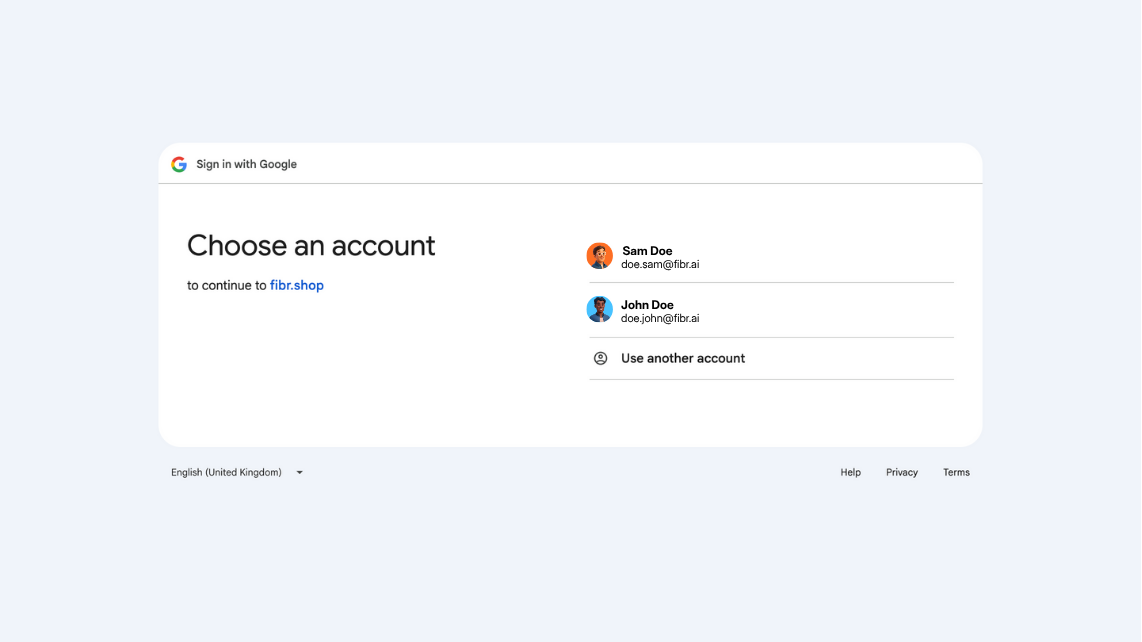
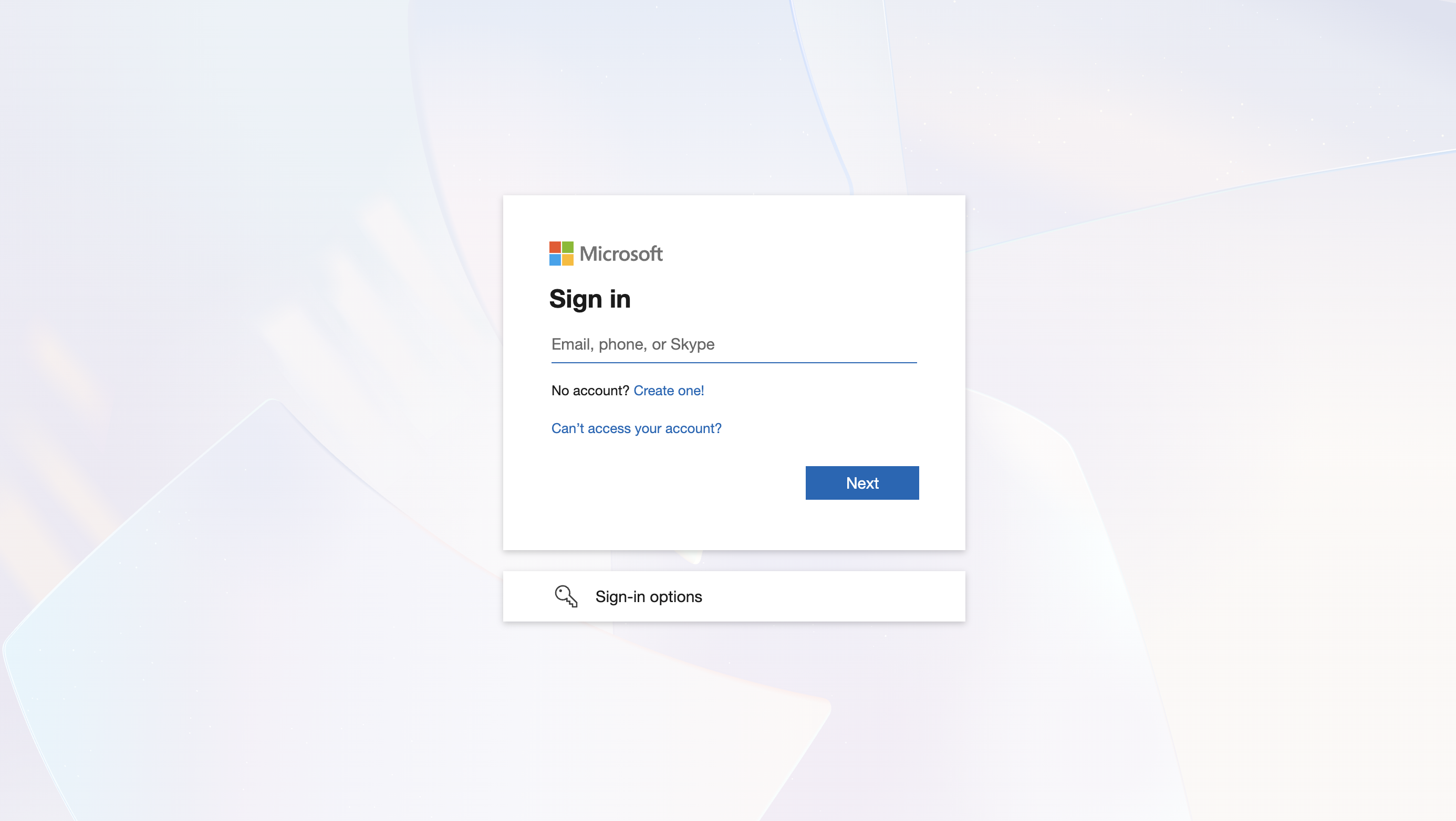
You can create or access your Fibr account using the following methods:
Method | Recommended For | Requirements |
|---|---|---|
Teams using Google Workspace | Google account | |
Microsoft | Teams using Microsoft 365 or Microsoft Entra ID | Microsoft account |
Email and Password | Users who prefer email-based authentication | Valid email address |
Single Sign-On (SSO) | Enterprise organizations using centralized identity management | Enterprise plan with SSO configured |
After signing in, you will be directed to the Fibr Dashboard, where you can configure your website, connect supported advertising and analytics platforms, create experiments, and build personalized experiences.
To get started, go to the Fibr Sign Up page and select your preferred authentication method.
SSO is available for organizations with an eligible Enterprise plan and must be configured for your organization's workspace.
Fibr supports enterprise authentication through compatible identity providers, such as Okta, Microsoft Entra ID, and Ping Identity, depending on your organization's configuration.
Select Continue with SSO.
Enter your organization's domain, for example, acme.com.
You will be redirected to your organization's identity provider.
Authenticate using your corporate credentials.
After successful authentication, you will be redirected to your authorized Fibr workspace.
Troubleshooting
Issue | Possible Cause | Resolution |
|---|---|---|
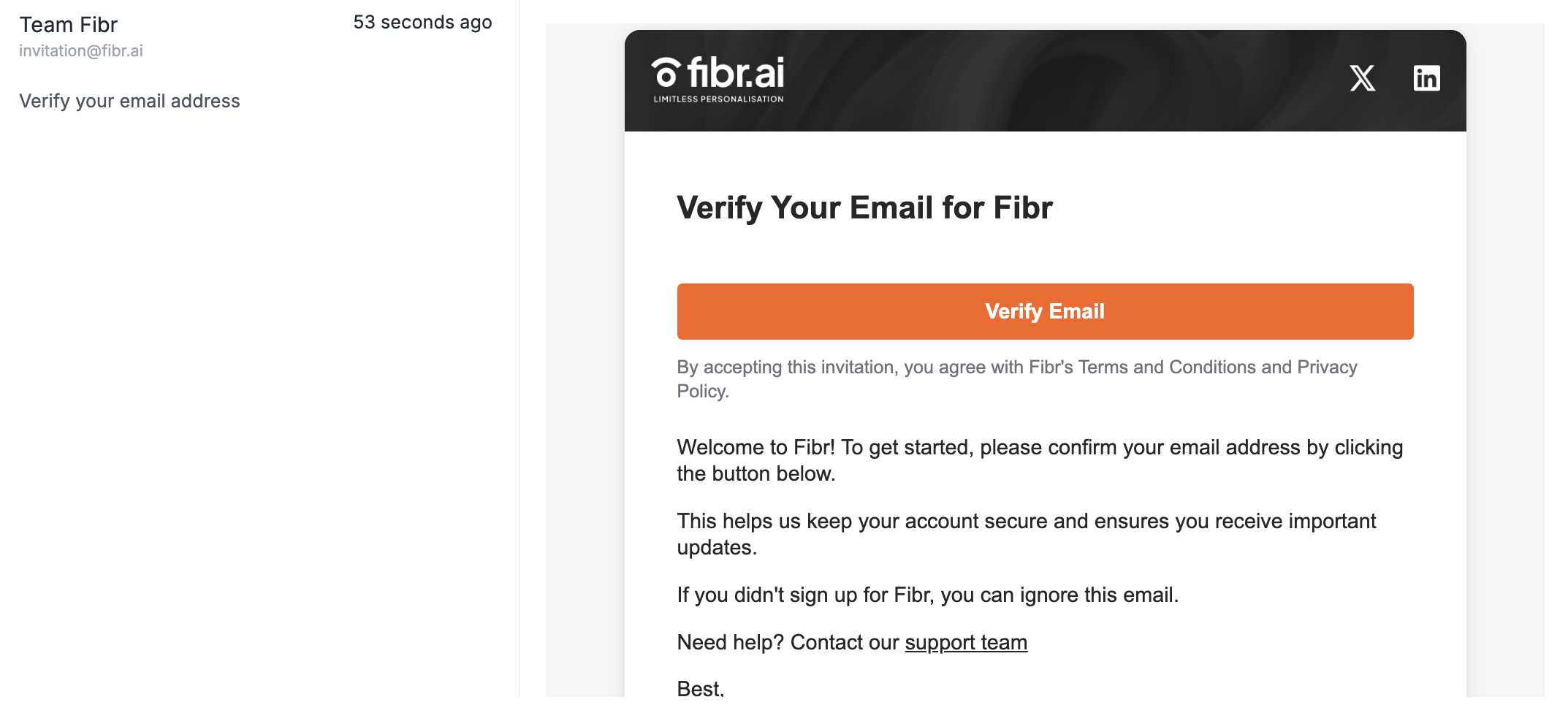
Verification email not received | The email may have been filtered, delayed, or sent to an incorrect address. | Check your spam or junk folder, confirm the email address entered during sign-up is correct, and select Resend email. If the issue persists, contact [email protected]. |
“Domain Not Allowed” error | Your email domain may not be authorized for the workspace. | Contact your workspace administrator or IT administrator to confirm that your domain is configured correctly. If additional assistance is required, contact [email protected]. |
Google or Microsoft authentication option is unavailable | Browser settings, extensions, or authentication restrictions may be blocking the login flow. | Refresh the login page, disable extensions that may block authentication requests, or try using a private or incognito browser window. |
“Email already exists” error | An account may already be associated with the email address. | Return to the login page and sign in using the authentication method previously associated with the account. For email and password authentication, select Forgot Password if required. |
SSO login redirects repeatedly or times out | The identity-provider session may have expired or the SSO authentication flow may not be completing successfully. | Close existing Fibr and identity-provider tabs, open a new browser window, and try signing in with SSO again. If the issue continues, contact your IT administrator or [email protected]. |